Super Slick Dusky Lighting Effects in Photoshop
In Photo Effects by CollisWhat we are Making
Click the image for the high-res version.Steps and Assets
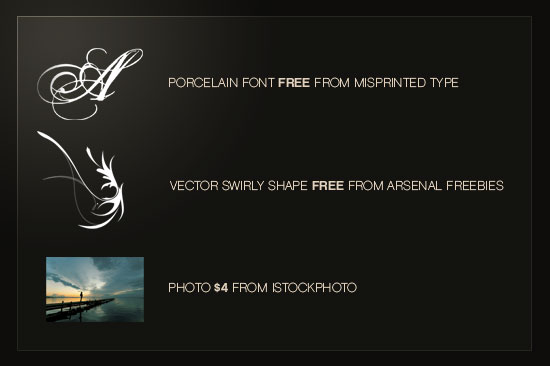
As always you can download the PSD file to follow along at the bottom of this tutorial. It's a pretty large file so be warned! Additionally we are using a few assets including a photo from iStockPhoto and some vectors from Arsenal's Freebie Section. Note that in the sample PSD, I've merged some text onto the original image to protect its copyright since it's such a large copy.
Step 1:
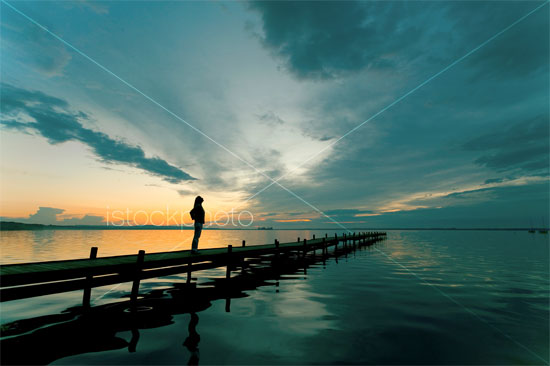
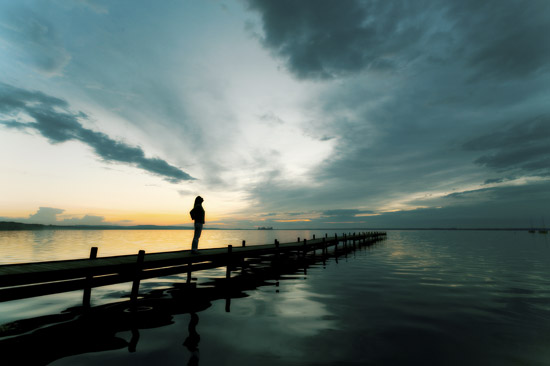
So here's our original photo from iStock. It's a pretty gorgeous photo with great sunset lighting and contrast for us to build on.
Step 2:
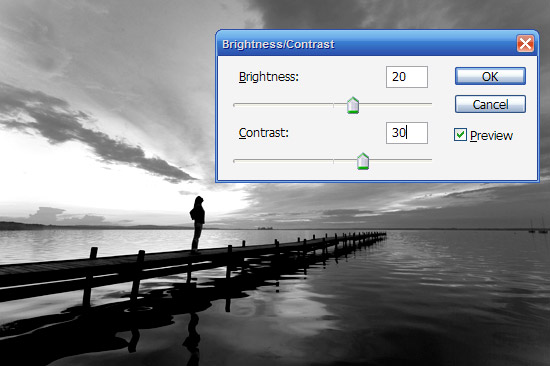
First off we duplicate the photo, press Ctrl-Shift-U to desaturate the image to Black and White. Then go to Image > Adjustments > Brightness/Contrast and make the image a bit brighter and contrastier as shown.
Step 3:
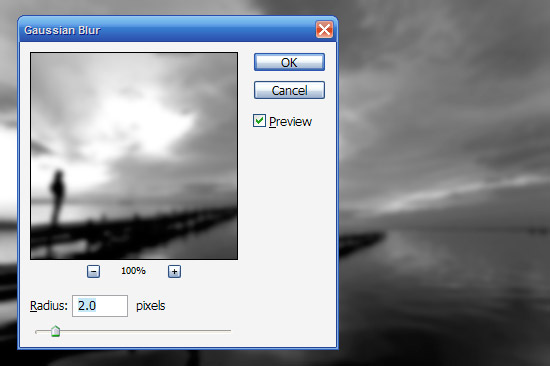
Now go to Filters > Blur > Gaussian Blur and apply a mild blur of 2px.
Step 4:
Now we set the blurred black and white layer to blending mode Overlay and Opacity 50%. This gives us a slightly surreal blurring on the image. BE WARNED: This effect (blurring then overlaying) is a bit of favorite of amateurs, so go easy on it. When you do use it, make sure you fade it out a reasonable amount so it doesn't look too tacky.
Step 5:
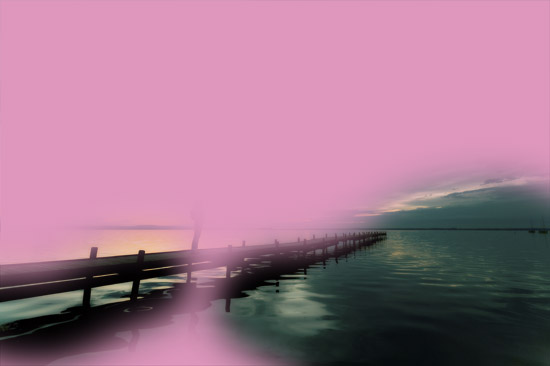
Now the lighting is pretty nice already, but I'd like some pinkish hues in the image as it makes the image a lot warmer than bluish colors. So in a new layer, use the Paintbucket to fill with a bright pink color. Then use the Eraser Tool with a large, soft brush and remove some areas where you don't want as much pink to shine through (this was pretty arbitrary for me and just gives the image more depth rather it being uniformly colored). We then set the blending mode to Color and 20% Opacity. Actually I did those two steps the other way around (I blended first then erased the bits I didn't want).
Step 6:
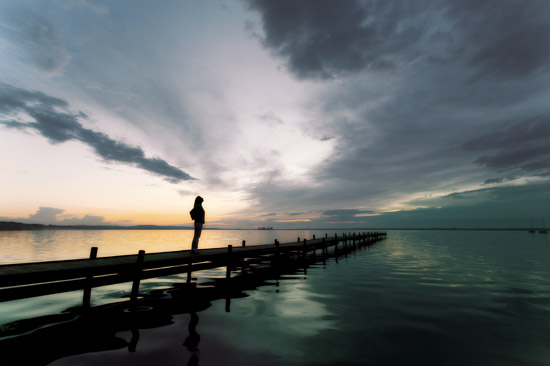
Here's the image after adding the pink.
Step 7:
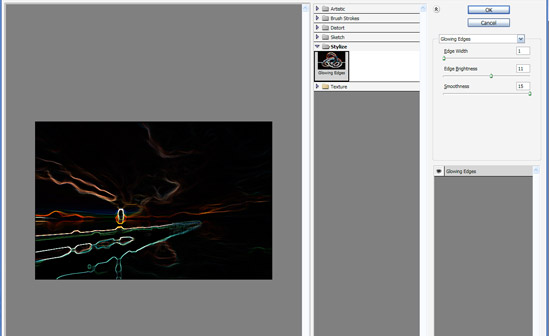
Now to make the sun rays, we are going to use a combination of glowing edges and radial blurring. So duplicate the original colored layer and put it on top of all the other layers. Then go to Filter > Stylize > Glowing Edges and use settings of 1, 11, and 15 respectively for Width, Brightness, and Smoothness.
Step 8:
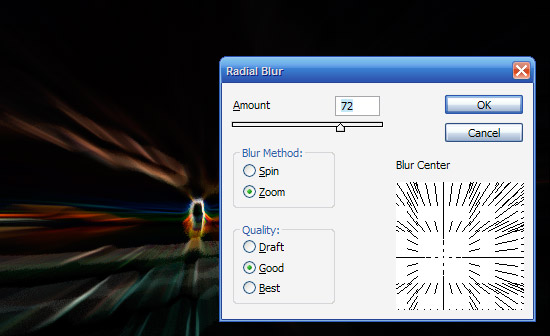
Now we go to Filter > Blur > Radial Blur and apply settings as shown. Make sure that you have set the blur method to Zoom (not Spin). Also importantly move the Blur Center until it's roughly in the position of the image where the woman was standing, i.e. where the 'sun' is going to be. You may have to do this a couple of times to get the positioning exactly right because it's a bit trial and error.
Once you've got it, apply the Radial Blur again by pressing Ctrl+F (to repeat the last filter used).
Step 9:
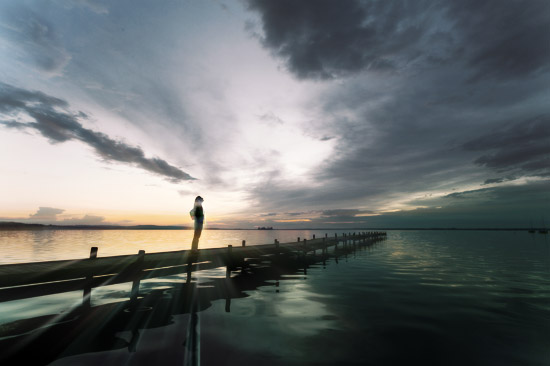
Now set the blending mode for this layer to Screen.
Screen blending mode basically knocks out darker colors to only leave the lighter ones. This is the opposite to Multiply which knocks out any lighter colors and just leaves darker ones. This is really handy for when you have say a logo on a white background and you want to apply it to an image but don't want to cut it out - instead you just set it to Multiply (or Screen if it's on black).
Step 10:
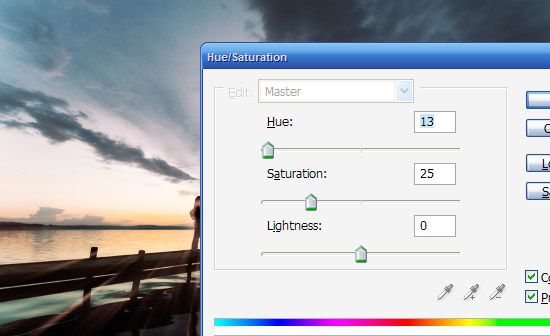
To get the light looking more like sunlight, we go to Image > Adjustments > Hue/Saturation and tick the box that says Colorize to add some more color to the light rays. Then move the sliders around until you get a reddish tint and press OK.
Step 11:
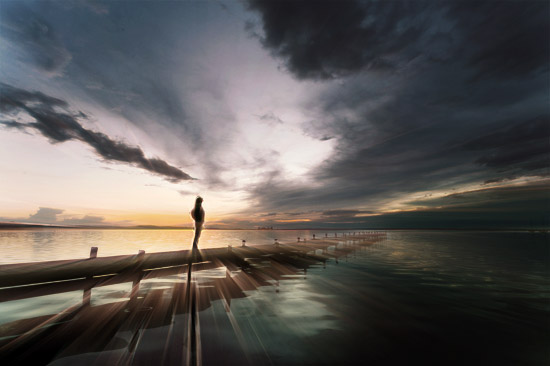
Now repeat the process (Glowing Edges > Radial Blur > Screening the Image) a couple of times to get more light rays as shown. Try moving the Radial Zoom filter around a little to get different casts of light to mix together.
Also as you add extra layers on you can always use the Eraser tool to remove some parts of a layer and leave others so that they blend together well. This is generally a matter of playing around with the image until it looks right. Also note that you can use Layer Masks to do this without losing any image data, but because I never used Masks when I was learning Photoshop, out of habit I still do things the old (and probably a bit dumb) way :-)
Step 12:
Next we want to add the big glowing center to the image. So create a new layer on top of all the others and get a large, soft brush and with White as your foreground color paint a blob of white over where the woman's silhouette is.
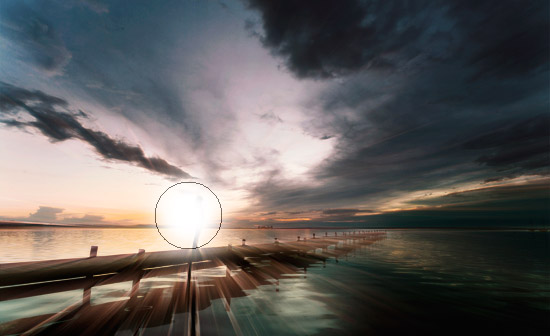
Step 13:
To this blob of white, we now add an Outer Glow of yellow set to Overlay (as shown). You can do this by right clicking on the layer and selecting Blending Options.
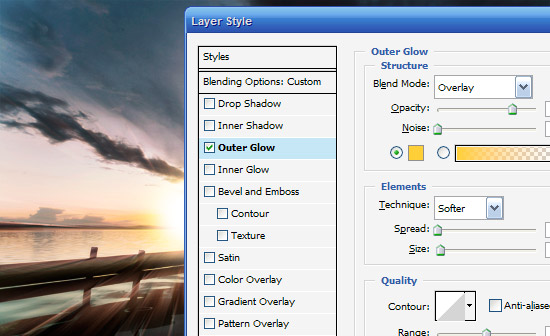
Step 14:
Now in your tools palette choose the Smudge Tool (R) which you can see in the image. Using your mouse, smudge your ball of light outwards. Note that in the image shown, I've done some pretty big smudges so you can see roughly what we're doing, but in reality you should make smaller, more subtle smudges.
What you are trying to do here is give it a burst of light feel. You might want to duplicate the layer and have a couple of them together which is what I've done in the sample PSD.
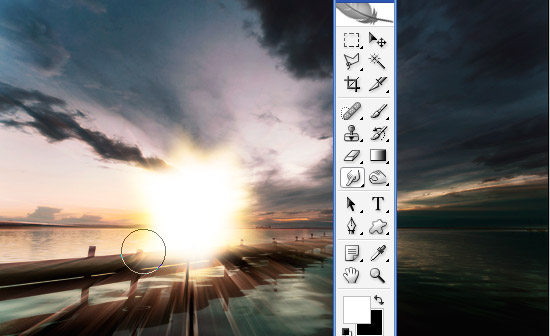
Step 15:
Now what sunset would be complete without a lens flare? Rather than using the filter though just create a new layer on top and draw a circle as shown and fill it with white. Set it to blending mode Overlay and about 10% Opacity. Then create a new layer and do the same with a smaller circle and repeat again a couple of times until you have a subtle lens flare as shown.
Then merge the layers together and set it all to about 30% because we want this to be really subtle!
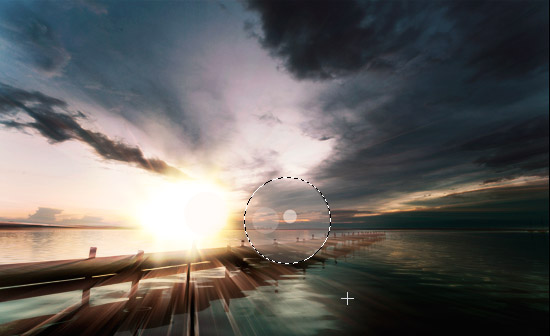
Step 16:
Now in new layers we paste in some of our vector images. I've used a sort of swirly wing thing from Arsenal's Freebie Section and also the capital letter A from a font called Porcelain, which you can get from Misprinted Type for free.
I chose both because they have lots of lines and swirls which fits what I want to do. I also duplicated the swirly wing vector, flipped it by going to Edit > Transform > Flip Horizontal, then Ctrl+T to scaled it down in the transform menu. That way its good for little details.
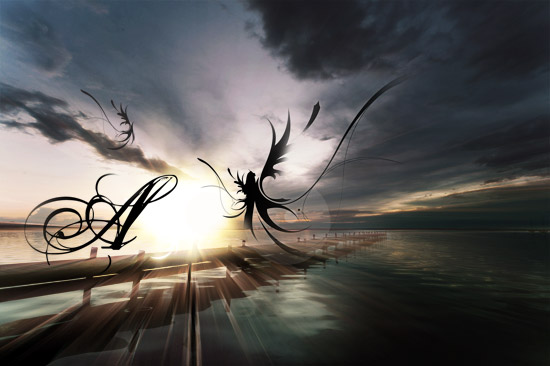
Step 17:
Now fit the three images together as shown. When we switch them to white, we want most of the objects to be obscured with just bits of swirl poking out the edges.
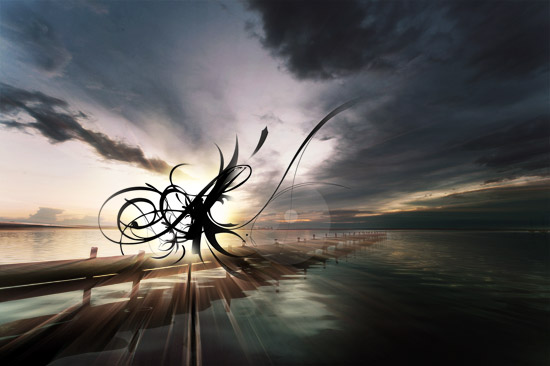
Step 18:
So now for each layer we press Ctrl+I to invert the color from Black to White and then right-click the layers and select Blending Options. Then we add an Outer Glow as shown to make them fit in with the main ball of light.
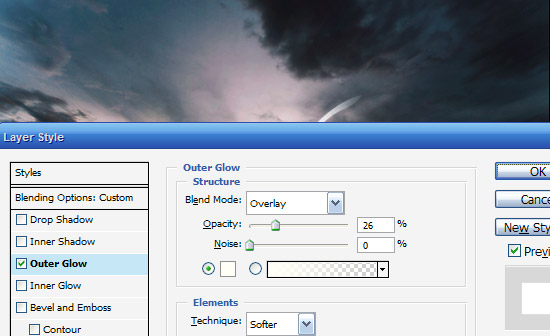
Step 19:
You should now have something that looks like the image below.
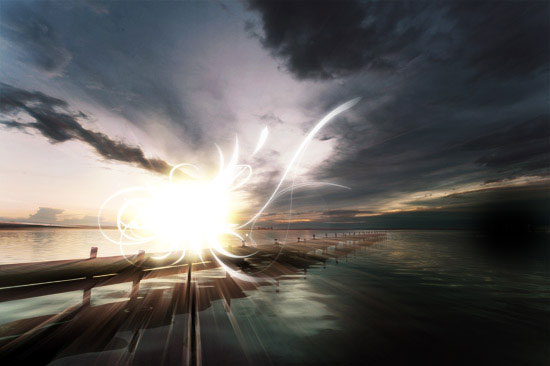
Step 20:
Now for the final touches, I've added some text using the font Chalet which is wonderfully elegant but isn't too over the top. Note that you might feel tempted to add a swirly, cursive type font for text, but this would be overkill. It's much better to contrast the complexity of the main image with a very simple and understated type treatment (in my opinion). Anyhow as you can see I've placed it near the center of the image.
Looking at the final image, I also decided it needed a little more color so I added a layer at the very top filled with a reddish color (#957070) and set it to Overlay at 30%. This warms up the image a little more, and you'll see that layer in the final shot.
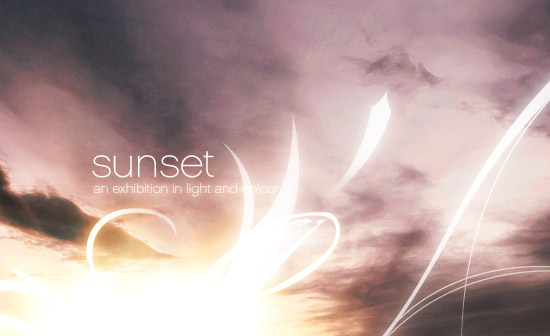
Final Image:
And finally we're all done. Click the image below for the high-res version of our finished product!


hvdesigns
September 28th, 2007
excellent 5 stars again
your effects are great
Martin
September 28th, 2007
Great Tut! Can’t wait to try this. Keep up the good work.
giackop
September 28th, 2007
Wow amazing!!!!!!! Very very nice..
mediamelt
September 28th, 2007
You rule. Keep em, coming.
Smart Man
September 28th, 2007
Could you do an example of how you come up with a website design?
JD
September 28th, 2007
I just found this site but after reading this one tutorial I am definitely bookmarking it and reading through the rest of the site when I get the chance. Easily one of the best tutorials I’ve come across in a while, as far as image enhancing goes.
Matthew
September 28th, 2007
Wow againnn lol
Zeb
September 28th, 2007
Yours tutorials are great, as usual !! Great !!
Jason
September 28th, 2007
The most easy-to-follow and informative PSD tutorials I have ever found online. I am forever devoted to this site and look forward to more, more, MORE!
Hyder
September 28th, 2007
Awesome tutorial once again Collis. It’s amazing how simple it is to build once you know how to do it. But getting to that point takes years of practice.
Thanks again.
P.S - I hope you have some tutorials on making logos, modifying fonts and such, coming in the future.
Dao
September 28th, 2007
Great tutorial! very well written.
Klaus
September 28th, 2007
This site has become a place to visit daily.
Your tutorials are really good, they show things I haven’t see before, and are very informative. Two thumbs up!
Martín
September 28th, 2007
The effect looks very nice. Keep up the good work!
Tim
September 28th, 2007
Woooooowww… thx for the great source of inspiration !!!
Love it !!!
Shadowfax
September 28th, 2007
Wonderful. Forget the tutorials. I love to come to your site to soak in the visual beauties u create
Shadowfax
September 28th, 2007
I would also like to create various radiant lines around various shapes, objects, logos. I have some Ideas now and for that I am indebted to you but i am looking forward to some aurora effect with more subtler styles
DS
September 28th, 2007
//speechless//
Hamish M
September 28th, 2007
Great tutorial, very nice effect for wallpapers and whatnot. Keep ‘em coming!
Clark
September 28th, 2007
This site is becoming really helpful, I’m a design student trying to get my head around Photoshop and your tutorials have taught me more than most of my tutors do
Graeme
September 28th, 2007
Thanks for taking the time to do this. I usually following such links from Digg and give an unimpressed “meh”. But my jaw dropped when I saw this tutorial It is outstanding. Keep up the great great work - the world appreciates it.
Nature Wallpaper
September 28th, 2007
That is amazing. That is some really nice photoshop skills, guess some have it and some have to come to figure it out
Steve
September 28th, 2007
Brilliant tutorial, lovely end result, going to have to give it a try myself later.
Thanks for the post
PAVAN
September 28th, 2007
very nice really I like it
Free stock photos
September 28th, 2007
Love your tutorials, keep it up Collis!
José Gomes
September 28th, 2007
Very good tutorial!!!!
(pt) Está um bom trabalho…
yuhh
September 28th, 2007
oha diyorum başka bir şey demiyorum…
Ivan Minic
September 28th, 2007
Very nice tutorial!
Laurie
September 28th, 2007
Brilliant tutorial once again.
You’re at the top of my RSS feed!
Just wondered if you had ever considered screen capture software to make tutorial videos?
I for one would absolutely love to see static tutorials made into videos.
I suppose the bandwidth might be an issue then?..
Thanks and keep it up!
Mr_LeE
September 28th, 2007
u rule
APIEX
September 28th, 2007
great tutorial!!
APIEX
September 28th, 2007
http://www.flickr.com/photo_zoom.gne?id=1452779238&size=l
brandy
September 28th, 2007
very nice! it’s great to see you explaining things further now. each tutorial gets better than the next!
others have mentioned they want tutorials for things like logo design and website design. i’d actually advise you against this… i don’t think anyone can really learn how to design a logo just from a photoshop tutorial! obviously, logo design and the like involves lots of work beyond the actual technical process.
also, your website is very specifically called PSDTuts, which means (to me) that you should just do tutorials on image creation and manipulation using photoshop as a tool. people can then decide for themselves where the effects you teach are most appropriate to use.
John Antunes
September 28th, 2007
One of the best tutorials I have ever read! Great Job!
Joe
September 28th, 2007
I just found this site today… and… WOW! I’m bookmarking this. And I bought ya a coffee haha
RJ Norris
September 28th, 2007
your technique is great, but your ability to see effective light, colour and composition is absolutely fantastic. of course, it’s a little more difficult to offer a tutorial in “what looks good.”
Travis
September 29th, 2007
I agree with what Brandy said (above). I think your tutorials teach fundamentals of manipulation, while true to rules of aesthetics and appealing design. Your tutorials end up looking professional, whereas many manipulation tutorials elsewhere end up overdone and amateur looking. Thanks for the beautiful work!
aaron
September 29th, 2007
excellent tutorial. There is a lot of solid stuff in there to learn from.
Thanks!
Jeff Finley
September 29th, 2007
Great use of Arsenal elements, it’s not too obvious. Nice and subtle!
AJ
September 29th, 2007
FANTASTIC.
I love your website, props.
alan
September 29th, 2007
woo hoo, another psdtuts tutorial. I thought I was going to be alone tonight! can’t wait to get home and try it out. thanks
Supercillious
September 29th, 2007
Beautiful. A wonderful show of talent
subcorpus
September 29th, 2007
this is like really good …
am gonna try it this weekend …
am sure i need more time to do this that most of you guys out there …
hehe …
nitesh
September 29th, 2007
this site totally rock. it has high standards of tutorials and laymens language for everyone.
Michael
September 29th, 2007
Great tutorial, thanks!
Brad
September 29th, 2007
Awesome tutorial, looks like the perfect album cover as well.
Mark Petereit
September 29th, 2007
Awesome! Do you do any Final Cut/Motion work?
Chris Coyier
September 29th, 2007
This tutorial brought to you by the awesome power of Overlay =)
Matt
September 29th, 2007
Very easy to understand tutorials! These are some of the best explanations that seen. Thanks for the great resource!
Ronnie
September 29th, 2007
Great tutorial. I used this for a similar image that I took in Costa Rica. http://www.wallyx.com if you would like to see.
Haleh
September 29th, 2007
Very impressive! I am always delighted to see people who use PS as a tool to creative surreal effects.
rafaelinux
September 29th, 2007
Impressive, just that!
Dennis Plucinik
September 29th, 2007
For people who use Photoshop a lot, these tutorials are like stories instead of tutorials.
Easily digestible short stories of Photoshop goodness.
blackhawk1793
September 29th, 2007
Very nice tutorial, excellent, please keep adding more of these type of tutorials.
Thanks for the tut.
ana
September 30th, 2007
u guys rule!
Alexander
September 30th, 2007
It’s music to my ears!
Mia
September 30th, 2007
thats brilliant! I never thought of that, especially the sun rays…awesome. I’m going to start trying that out myself.
Sean Hodge
September 30th, 2007
Great Tutorial. I haven’t used it yet. But I’m looking for a client project I can incorporate this into. Thanks.
Headshot
September 30th, 2007
Awesome Tutorial!!
The final result looks really great!!
1 question ;), i wrote a tutorial and submitted it.
How long will it take for a reply about accepted / rejected?
Could you let me know, i would appreciate it
Kind Regards,
Headshot
Hellgrace
September 30th, 2007
Awesome!
Kelvin
September 30th, 2007
WOW! that’s a great tutorial. I have been using some of your tutorials on some of my projects. It gave me brilliant effects and bascialy WOW-ed people.
for this tutorial, may i ask where did u find your Chalet font from? i love it.
Thanks.
noogie
September 30th, 2007
Thnx 4 this =)
h3ll0
September 30th, 2007
F**ing!!! Awesome!!! Keep Going!
Amazing Site!!! I just Love IT!!!!!!!!!!!!!!!!
Eric Thoolen
October 1st, 2007
Finally a tutorial site with some decent advanced techniques! Oh man please keep this up! This is fantastic!
Franksta
October 1st, 2007
Fast server; I hit upwards towards 2Mb/sec downloading the PSD file. Great tutorial! Keep it up!
Headshot
October 1st, 2007
Awesome Tutorial!
Is there a way to get in contact with you Collis?
PARPOLE
October 1st, 2007
AWESOME…!??! MORE TUTORIALS PLS… ^_x
paris
October 1st, 2007
your tutorials make me speecless…
Levi Figueira
October 1st, 2007
My first reaction when I opened this was: … (silence… awe! :o)
I will use this technique someday, but the most useful thing to me was the fonts you presented. That cursive is exactly what I’ve been looking for for an idea I’ve been having!!
Thank you so much!
Kate
October 1st, 2007
Cool, you are my favorite photoshop tutorial
NobsTutorials
October 1st, 2007
Thanks for this, great tutorial as always!
Xavier
October 1st, 2007
Man, you killed it again, you are a master.
wiiL
October 1st, 2007
nice nice
:D
thx for god tuto
dodobahia
October 2nd, 2007
That´s wahy i love this site, great tutorial again, the way that u teach is simple and very clear, thanx!
Chuck.hc
October 2nd, 2007
Thx for all.. continue !
pitaro
October 2nd, 2007
yup…very good tutorial….
keep more !
bruni...
October 2nd, 2007
Hey, you are the man!
Darren
October 3rd, 2007
Great tutorial once again, learned some techniques I will use in other images.
The multiply and screen for cut-outs….never even thought of that!
mahir
October 3rd, 2007
super!!!!!!!!!!
looking like exibhition invitation card
Ozwall
October 3rd, 2007
great tutorial, i was searching for somethig like this ..thanx!!!
Photoshop Tutorials
October 3rd, 2007
You’re tutorials are simply awesome. Thanks for sharing it.
Ashley Ford
October 3rd, 2007
Absolutely fantastic site, lovely design, excellent use of icons. really great images! keep up the good work!
Ashley
suba
October 3rd, 2007
Yours tutorials are great…….!!!
m.o.m.
October 4th, 2007
Great Tutorial. Thank you.
Tommy Lee
October 4th, 2007
ok so i did everyting like u said just when it came to the vector image it wouldnt save or instal right idk if i did it wrong but how can i get that free pack thing from go media
Jimbo
October 4th, 2007
Great Tutorial, I must know, Where did you get the Chalet Font from? Please e-mail me when you can
Jimbo
ShereKhan
October 6th, 2007
Great tutorial man.
SIDDHARTH
October 6th, 2007
wow…!……..really nice one.
Joel
October 7th, 2007
You rule man. HARD.
Giannis
October 7th, 2007
Super! I’ll try use it for a brochure design.
I hope it works at 300dpi…
somchai
October 7th, 2007
very Goods
HARI BABU A
October 7th, 2007
Great tut man! i love it. i tried it and has come out well. want to see more from you
Harry Roberts
October 8th, 2007
Wow, amazing! Thanks!
Visitor921
October 8th, 2007
I have visited your site 255-times
Erik
October 8th, 2007
Sweet effect!
Really dig this one!
Great work, keep it up! =)
Boris
October 8th, 2007
Greth tutorial i want to be there.
Thanks!
abdelaziz
October 8th, 2007
nice tutorial, thx a lot !
shinu
October 9th, 2007
Mind-blowing… Great man. Thanks 10 out of 10 points
Daniel Costa
October 9th, 2007
Amazing effect! Congrats!
J Bobbink
October 9th, 2007
Thank’s again for such a nice tutorial! Keep up the good work!
Martha
October 10th, 2007
Wow! Great tutorial! I’m now inspired to read more and learn more! Thanks, keep them comin’!!
mossiwo
October 10th, 2007
Awesome! you have perfected the technique, great way to go! I’ll give it a try.
rachel
October 10th, 2007
This is beautiful. Thanks for the tutorial, I can’t wait to try it out!
Ian Farrell
October 10th, 2007
You really should get a book of tutorials out, you have some amazing techniques!
Jude
October 10th, 2007
Awesome tuts… some of the best i’ve ever seen!!!
Well Done!
Chibone
October 11th, 2007
Sweet
Eduardo Guerrero
October 11th, 2007
Excelente, muchas gracias !!!
R3D
October 11th, 2007
Oh my god, really nice. I always wondered how people made these kind of pictures. Or I was to lazy to try it myself ;o)
Thanx for sharing!!!
M.Gökhan AKSAN
October 12th, 2007
This work is so great ! Congrulations !
M.Gökhan AKSAN
October 12th, 2007
sorry… -> congratulations
Iman
October 12th, 2007
Great!

Keep up the creative work
Soumya
October 12th, 2007
Another superb tutorial! Your tutorials teach quality stuff! It’s very, very helpful for amateurs like me! Thanks a lot! Keep up the good work!
eliwagar
October 13th, 2007
Thank you very much for this great tutorial! Just did my own piece and I love it…if anybody want to see it: your welcome to visit my Site :)…I love the glowing edges effect! Thank you so much for sharing!
emol
October 13th, 2007
wow.. cool.. colors are very smooth but contrast in tone.. love it!
KoLdSnow
October 15th, 2007
hmm, i cant get the vector swirly shape from arsenal freebies
T.T) where i can get them..
dillip
October 15th, 2007
Great tutorial
Aroldo Contreras
October 15th, 2007
WOOOW! so F***** awesome!! De maravilla! Saludos Desde Venezuela! xD
Cristine
October 15th, 2007
It’s a very nice……
but how can u remove the watermark
SATORi
October 16th, 2007
Hi, Great work! Excellent. You make it look so simple yet it takes a great amount of time and hardwork to get such effects!
However, I am getting a problem as I can’t get the “Glowing Edges” effect of the sun’s rays to come on the picture. Is it because I applied the previous layer’s colour to half of the picture vertically?
Not have the ray’s effect really distorts the image as a whole.
I would like to get a reply from you ASAP as I am working on something and it’s taking some time to finish it due to the ray’s problem which also causes smuding problems x_x.
Regards,
Edgar
October 16th, 2007
Ja wie por favor!
Tanja
October 16th, 2007
Awesome, beautifull, here’s mine:
http://shmizlicka.deviantart.com/art/corfu-66976963
not so good as yours!
Brad
October 17th, 2007
Jumpin’ Jesus on a Pogo Stick!!!! This tutorial ROCKS!!!!! Thanks!
Frankey
October 17th, 2007
oh emm gee..
this is awesome..
but its difficult to understand..
i got lost on the step 8..
):
solon
October 18th, 2007
cool tutorial men
solon
October 18th, 2007
greetings from vzla XD
肥肥
October 19th, 2007
非常漂亮,谢谢分享
RebelDesigner
October 19th, 2007
Nice nice nice… wish I had 3 dollars to offer you Coffee, but you deserve whole one moth supply of coffee after this tutorial.
Thankyou
jose gonzalez
October 20th, 2007
Hi nice tut look out my portfolio http://www.rephixartlab.com
and also my photoblog blog.rephixartlab.com
