

Today, we have decided to bring back a post by Envato founder, Collis Ta’eed, from May 2008, that demonstrates how to create spectacular grass fonts and effects in Photoshop.
Follow us over on our Envato Tuts+ YouTube channel to learn how to create your very own grass font in Photoshop:

Envato Tuts+ has been around for many years. During that time, we’ve posted a lot of content. We know that the amount of content on our site may be a bit overwhelming to those of you who have recently discovered our site. That's why we've decided to periodically resurrect some of our older posts for you all to enjoy. Let’s start designing your very own free grass font effect!
Jump to content in this section to create your own Photoshop grass font:
1. How to Create the Background
Step 1
This tutorial is made up of three parts—the background, the text itself, and some final extra effects. So first of all we're going to make a background. To do this, we create a new document in Photoshop. I made mine 1920 x 1200 because I want this image to sit on my laptop background.
We start by drawing a Radial Gradient with the Gradient Tool (G) going from a light yellow-green (#adbf41) to a mid-range green (#328a26). I wonder if I've ever written a tutorial that doesn't start with a radial gradient.


Step 2
Now for this image we want to create a really textured background, faintly resembling paper. So the first thing we need is... a paper texture!
Happily, you can grab some awesome grungy paper textures from Envato Elements and they are nice and large too, which is good because this is a huge canvas.
So I can't remember which texture I used first, but grab one, desaturate it (Shift-U and set Saturation to -100), and stretch it over the top to fit the canvas.


Step 3
Now we set the layer to Color Burn and 20% Opacity to blend the texture with our nice green background.


Step 4
Now, to get a really distressed look, I then copied this layer, spun it around 180°, and set it to 20%. Then I brought in a few more layers of paper texture (using different textures), set them all to Linear Burn or Color Burn layer style, and played with the Opacity.
Now it looks rougher.


Step 5
Now I duplicated the original background gradient, placed the duplicate layer above all the textures, and set it to 40% Opacity—this tones back the texture so it's not quite so grungy!


Step 6
Now we create a New Layer over the top and, using a large, soft, black brush (B), add some black to the edges. It's worth toning back the Opacity to about 30% and Overlay. You can then duplicate the layer and run a heavy Gaussian Blur over it (set to about 32 px). That way, the edges soften out.
OK, we now have a nice background!


2. How to Create the Grass Text
Step 1
OK, we are now ready to make a font that looks like grass. To do that, we're going to need some nice pretty grass to cut. After a lot of searching, I finally found this lovely texture.
So download the image at full size and copy it onto your canvas. After that, click the eye icon to make the layer invisible.


Step 2
Next, we need some type for the grass letters font. So select a font you want to cut out with.
I chose Devant Horgen, which is fat and condensed type. I thought it looked nice and grand. And I've written the text "EARTH".
That's because I'm making five of these wallpapers—earth, water, fire, air, spirit... it's like that cartoon I used to watch as a kid, Captain Planet! Anyway, just set your text out in white and set it to Overlay and like 50% Opacity. This layer won't actually show in the end—it's just a guide layer.


Step 3
OK, so here's the text on top of the grass we got earlier. Select the grass layer and Duplicate (Control-J) five times.
Now a bit of planning! To make a font of grass, it's not going to be enough just to stencil out the grass. Rather we need it to look all rough, with bits of grass sticking out at the edges.
To do that, we're going to use the letter shapes as a rough guide and then trace roughly around them and periodically jut out to trace around blades of grass. I'll warn you now, this step of creating a grass font in Photoshop is very tiresome!


Step 4
OK, so here we are tracing the grass letters of the font design. If you want to make it less detailed, Transform (Control-T) the grass layer and make it bigger.
You should use the Pen Tool (P), and frankly, if you're not handy with it before you start, you will be by the end!
Notice how in the parts where my path juts out, it sort of follows individual blades of grass. That way, when you have the final cut-out, they will look like pieces of grass sticking out.


Step 5
Right-click on the path and select Make Selection. Set the Feather Radius to 0.


Step 6
Select one of the grass layers, and then invert your selection (Control-Shift-I) and Delete.
In the screenshot, I've faded back the duplicate grass layers so you can see the cut-out "E" part.


Step 7
OK, so here we have our "E" on the final background. It's a key step in designing Photoshop fonts that look like grass.
As you can see, it looks only slightly better than if we'd just used the letter to stencil out the grass without bothering to trace. But that's OK—what it needs is a bit more depth. After all, if that letter was really sitting there, we should see some shadow and sides to it.


Step 8
First of all, though, we'll add some layer styling to give a bit more of a three-dimensional look to this font that looks like grass. The styles are shown below.
Here's the set of layer styles...


Step 9
So this was all just experimental, and it kinda looks OK, but obviously has a long way to go. Now we'll add some shadow. For that, we'll use a technique that I demonstrated in a previous tutorial, Using Light and Shade to Bring Text to Life.
The idea is to make a three-dimensional look. So Control-click the grass layer and then, on a new layer below, fill it with black with the Bucket Tool (G). Move it right and down with the Move Tool (V).


Step 10
Now we run a Filter > Blur > Motion Blur.


Step 11
Set the shadow's Opacity to 30%.


Step 12
Now I duplicated this layer. I erased (Control-E) a bit of it so that as the shadow is closer to the text, it gets darker. I set this layer to Multiply and Opacity to 60%.


Step 13
So this Photoshop grass font is looking pretty cool, but for that extra depth, we should add some bits of grass in the background/shadow area. Rather than cutting out more grass, we can just use this current letter transformed about so that it's not obvious that we're hacking it together.
Duplicate the main grass letter layer, move it under the first grass letter layer, and turn off effects (click the eye icon near Effects). Because these new grass bits are in shadow, you might want to use the Burn Tool (O) to darken them appropriately.


Step 14
Select all Letter E's layers and Group them (Control-G).


3. How to Create the Remaining Text
Step 1
Using the same technique, finish the rest of the letters of your font of grass.


Step 2
Let's add more individual blades of grass to make the look more natural. Select the Smooth Tool from the tools sidebar.


Select the first layer of each letter (with our style effects) and add tips of the grass. Now it looks more random and organic.


Step 3
Now, as nice as it's looking, this font that looks like grass is a little lonely and monotonous. So in this last section we'll add a few more elements to the design. We don't want to overdo it, though, because I want this to be a desktop background, so space is important (for all my icons!).
So first up, let's add some extra text that's not made of our grass letters font. Here I've placed a nice quote about the earth and unity taken from the Baha'i faith (that's my religion!). I love quotes, because it means we get three parts to decorate—the quote, the quotation marks, and the source.
I used the free PT Sans font from Google Fonts. The color is #bbe571. So here I've set the quote to Overlay and 50%, then duplicated the text and set it to Screen and 50%.
Then I've added quotation marks in the same Swiss font, but made them extra large and a bright shade of green. Finally, the source of the quote is in teeny letters and centered vertically. And, of course, the whole quote has been measured out so it's exactly the length of the main "EARTH" text.


Step 4
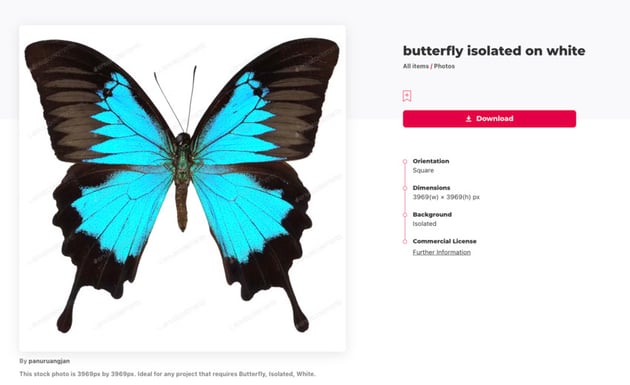
Now we'll add two eye-catching elements to offset all the green. These will be a brilliant blue butterfly and a little red ladybug. I used the excellent butterfly.

Step 5
Open the ladybug and butterfly photos in Photoshop. Use the Pen Tool (P) to trace the images and copy them to our main canvas.


Step 6
Now we need to place them appropriately. It's best if they aren't close together, because that way they'll balance each other.
I added a drop shadow to each (double-click the layer and choose Drop Shadow in Blending Options). With the ladybug, it's a very close shadow because he's small and walking on the grass. With the butterfly, I set some more distance because he's hovering in the air and therefore the shadow lands a little way away.


Final Image
And this is how you create your own free grass font design! This is the final result.
Don't forget to share your recreation of this Photoshop grass font effect with us. We would love to see it.


Text Generators From Envato Elements
Although you now know how to create your very own free grass font in Photoshop, there are simpler ways to get there. Text effects just got a whole lot easier with text generators from Envato Elements. Create mind-blowing effects with realistic textures and 3D shapes!
Check out some of our favorites below.
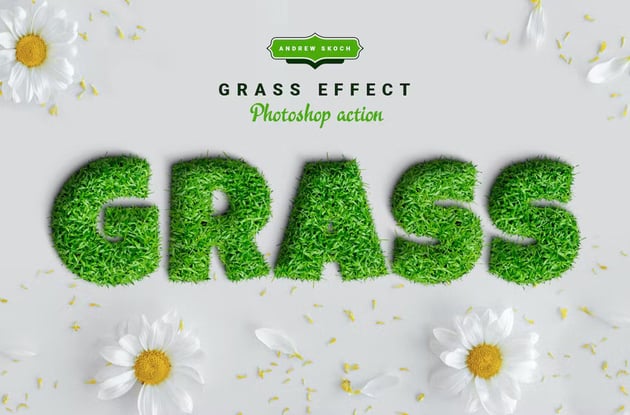
1. Grass Font Generator Photoshop Action (ABR, ATN, PAT)
If you can't spend too much time designing a font of grass, try this amazing grass font generator. Choose from four beautiful options to change the color and style of your grass fonts. Download this pack today.

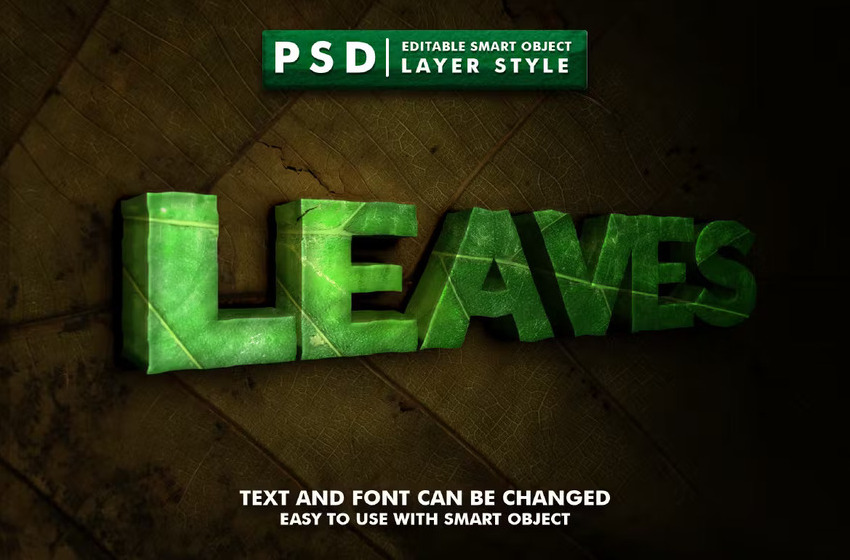
2. Nature Editable Text Effect 9 (PSD)
This one isn't a grass font generator, but it's similar. The eco-design trend is a big hit. Make your designs trendy and fresh with this mockup set.
This Photoshop action will help you to make text and shapes that look as if they're built with leaves. Add a natural, organic look to your signs.

3. Snow Lettering Photoshop Action (ABR, ATN, PAT, PSD)
With this Photoshop action, you can have your text or logo written in snow. It's a very realistic effect for winter projects that you can create in just a couple of seconds. The set includes three different effects:
- snow lettering: text or logo is written on snow
- red salt: text or logo written with snow on red salt
- ice effect: text or logo written with snow on an ice surface.
This action works with anything: text layers, vector shapes, pixel layers, smart objects, and folder groups.


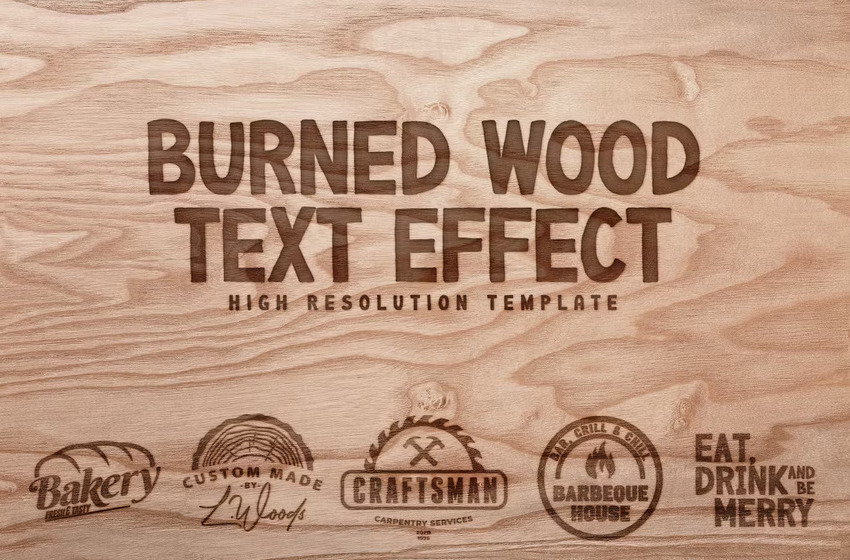
4. Burned Wood Text Effect Template (PSD)
When it comes to text effects and textures, there's so much more than fonts that look like grass. With four different styles, it's easy to create eye-catching burned wood text. The effect is pretty realistic. Use this bundle to add a natural, crafty look to your designs.

5. Vibrant 3D Text Effects (ASL, PSD)
Want to create stunning 3D text? Here are some easily editable 3D style effects. This set contains eight different styles and works with any font and shape.
Add a vibrant look to your designs in just one click!



More Text Effect Tutorials
You're all set to design grass fonts in Photoshop. If you want to learn more text effects, here are some other very detailed tutorials.

 How to Create a Realistic Embroidery Text Effect in Adobe Photoshop


 How to Create a Colorful Explosion Photoshop Text Effect


 How to Make a Tentacle Art Brush in Adobe Illustrator


 How to Create a 'Stranger Things' Inspired Text Effect in Adobe Photoshop

 How to Make a Pickle Pattern Brush in Illustrator

 How to Create a Floral Typography Text Effect in Photoshop

 How to Create a Quick Sketch Text Effect in Adobe Photoshop

 How to Create a Styled Mixer Brush Text Effect in Adobe Photoshop


