Everything Photoshop Subscribe

Creating a Stunning Digital Smoke Effect

In Effects by Fabio
Some time ago I came up with a technique to create digital smoke using the Liquify filter in Photoshop. Although it was a simple and efficient way to achieve that sort of effect, people sent me emails asking how to customize it or that it wasn’t so easy to follow.

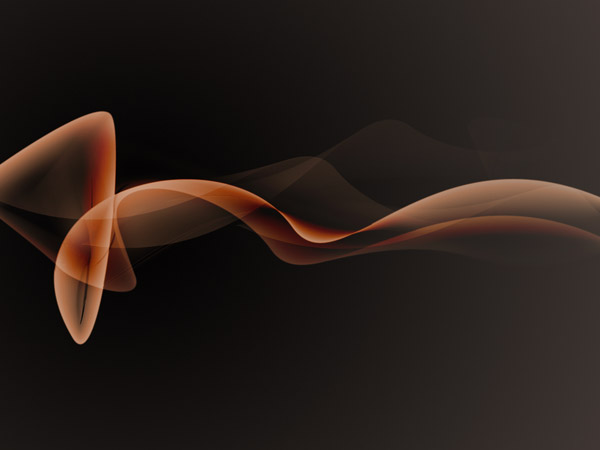
In this tutorial we are going to show you how to easily create digital abstract smoke using both Illustrator and Photoshop. One of the best things about this technique is that it’s very customizable and you can do it pretty quickly.

As I said before, we will use Illustrator a bit, actually you can use whatever vector software you have. The only requirement is that it have a similar tool to the Blend Tool in the Adobe’s app.

Step 1

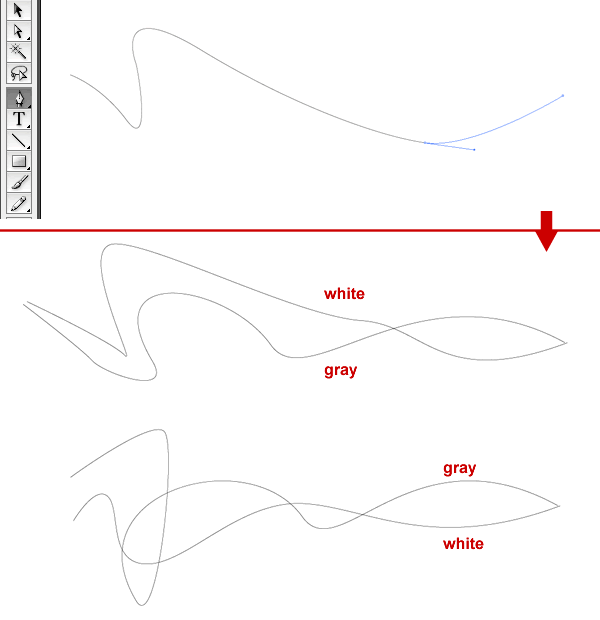
Open Illustrator, and using the Pen Tool (shortcut: P), draw two different curved lines, try to make them cross each other like the ones below. Those will be the shape of our smoke. After that, do the same thing again and draw 2 more lines. From those 2 pairs of lines, select one pair set the stroke color of the first line white and the other with Dark Gray(70%). Repeat the same thing to the other pair of lines, however invert the colors. The reason we do this is because when we import those shapes in Photoshop we will be able to tweak the colors with a lot more ease.
Step 2

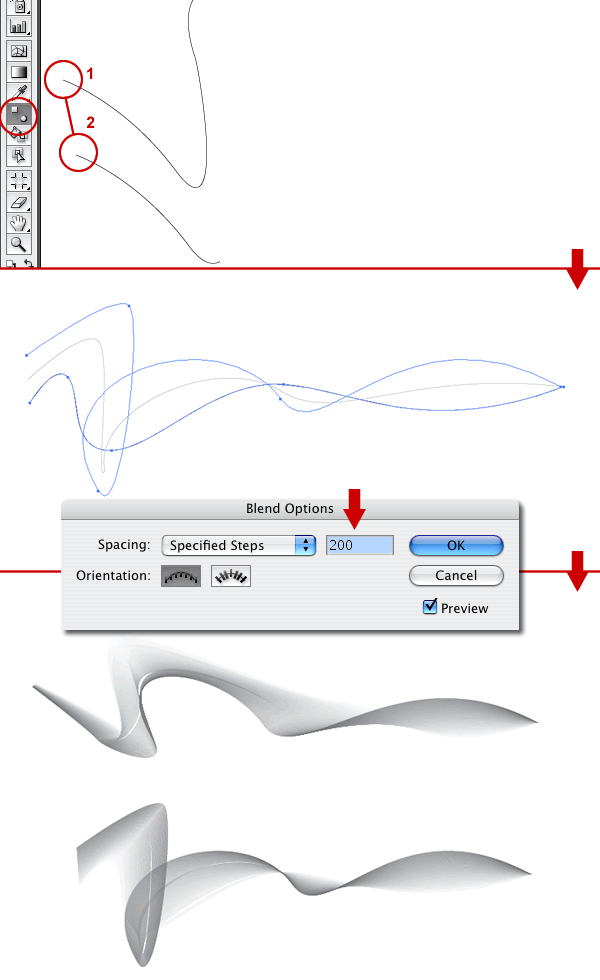
Using the Blend Tool, click on the edge of the white line and then click on the edge of the gray line. It will create a line between the two lines. With the Blend selected go to menu Object>Blend>Blend Options. There change the Spacing to Specified Steps and put 200 steps. Repeat the same procedure to the other pair of lines we have.

Step 3

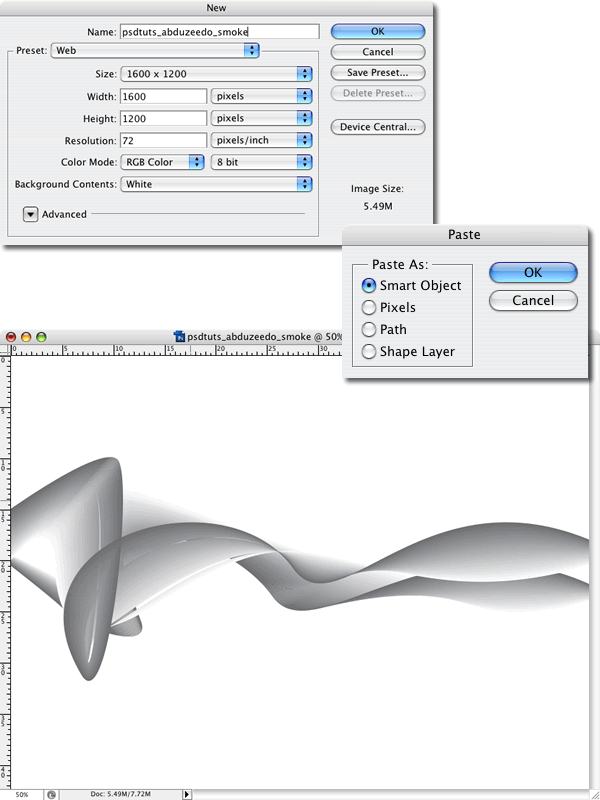
Now it’s all Photoshop from here. Copy the first blend and paste it in to Photoshop as a Smart Object. Repeat that for the second layer. We choose to paste as Smart Objects because you can scale and re-scale without losing quality. This happens because they remain vectors rather than becoming bitmap graphics. Besides that we can edit the vectors again, and if you are using the CS3 version it’s possible to apply all filters in a non-destructive mode as well. That means if you apply any filter you will be able to change their parameters anytime or even delete the filter effect returning to the original image. This is not dissimilar to Layer Styles except now with filters.
Step 4

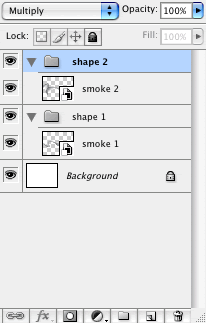
Here I just organize my layers using folders. Set the blending mode to Multiply for both folders: Shape 1 and 2. After that apply a Gaussian Blur with a radius of 1 pixels in both layers: Smoke 1 and 2.
Step 5

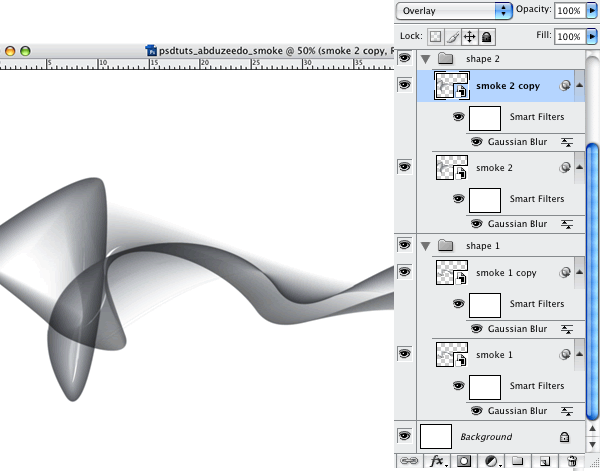
Duplicate both layers inside of each folder. So you will have Smoke 1, Smoke 1 Copy, Smoke 2, and Smoke 2 Copy. Change the Blending mode of the Smoke 1 Copy and Smoke 2 Copy to Overlay
Step 6

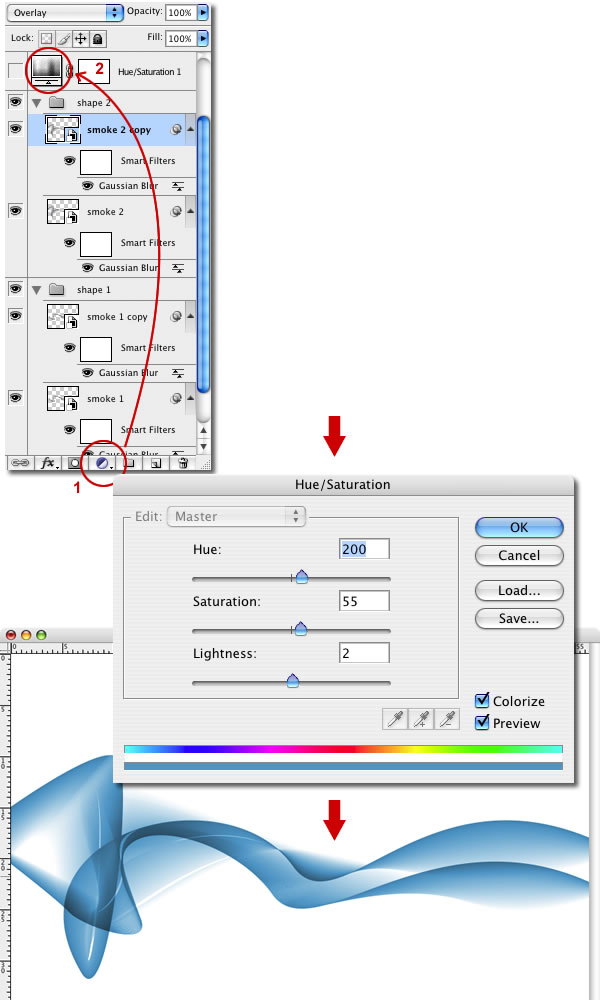
Now we are going to change the color, from that grayish tone to a blueish one creating a new fill or adjustment layer and choosing Hue/Saturation. Put that layer on top of the others and double click on the layer to edit the Hue/Saturation parameters.
Step 7

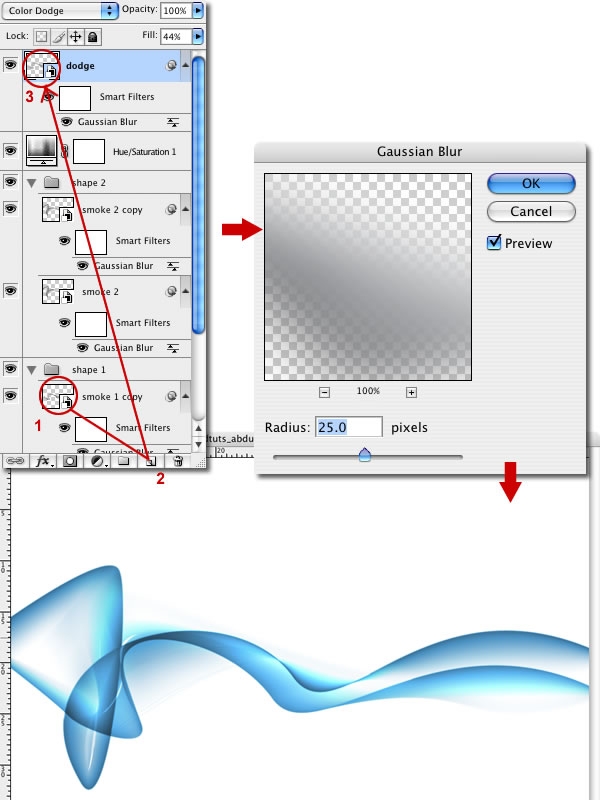
Duplicate the Smoke 1 layer and Rasterize it and put on the top of the other layer, even above the adjustment layer. After that change its blending mode to Color Dodge and apply a Gaussian Blur with the radius of 25 pixels. You will get a light blue color like a glow.
Step 8

Now we have the basics we could stop here and have a great effect already. But let's take it to the next level, it's time to add some extra wafts. First fade Smoke 1 back to about 50% so it's a little softer. Then duplicate the Smoke 1 group and fade right back to 20%. Select the group and add a Layer mask. Then using a White to Black radial gradient mask it out as it gets to the right side so the smoke is fading off into nothing.

Step 9

Next duplicate the same fading out smoke layer we made in the last step again and rotated it to make it look a bit more random. If you had time you could replicate these layers from the very beginning steps in Illustrator. Your aim should be to have wafts of smoke going away from the main smoke channel. If you want a smoke on white effect, you should stop here.

Step 10

Next create a new layer above all the others and fill it with a gradient going from White (#FFFFFF) to grey-ish blue (#C4CCD0) as shown.

Step 11

Set the new layer's blending mode to Exclusion. Exclusion (as well as Difference) invert colors from lower layers which gives us a smoke on dark grey effect.

Step 12

The coloring is now pretty cool, but it could be even more graceful. Create a new layer above the others and fill it with a linear gradient from #5f4547 to #7096e4 as shown. Once you have the gradient, set the blending mode to Colour and 50% opacity.

Step 13

Finally we add a bit of text to finish off the image. This effect is best when you create it larger than you need at the end, then shrink down and run the Unsharp Mask filter over it (Filters > Sharpen > Unsharp Mask) to get the curves looking clean and crisp.

Conclusion

Using Illustrator’s Blend Tool gives a lot of flexibility so it’s possible to create any sorts of shapes and blend them, even create blends with 4 different shapes. Then in Photoshop with the Smart Objects and Smart Filters we can apply, change and test all kinds of filters and combinations. It’s all about playing with the tool.

As Bert Monroy always says I hope you have learned something from here and it’s not the end result but how we got there. Thanks

Sample PSD

If you enjoyed this post, your vote is always highly appreciated!! Delicious StumbleUpon Float Reddit Mixx

Comments

Leave a Comment
  1. Hmm, this is a slightly weaker tutorial than the normal amazing stuff we see here.

    I’m just sayin’.

  2. That’s a real pretty effect and all but it’s doesn’t look all that smoky to me.

  3. Great Tut! But I have my difficulties on creating the curved lines in Illustrator.. Is it also possible to upload the Illustratorfile? This would be great help for me =) …

  4. Gravatar

    Murray McGinley

    Good to see a bit of illustrator work here!Hope to see more soon.Cheers for the tutorial!Brilliant as always!

  5. Excellent tutorial. I already know where to use this technique. Thanks a lot

  6. That is gorgeous. Another wonderful tutorial. A+

  7. Oh my god, this is graet, thaks man.

  8. Pretty … love this site and how often it’s updated with fantastic content and easy to follow tutorials :D 5/5

  9. Hmmm.. sorry, but I must say… this was not a good tut.
    I was expecting the best here. =(

    Extremely Yours Sincerely

  10. I have not tried this tutorial, but can you make it in Photoshop CS2

  11. Very nice!
    But I think the effect would be better with darker colors or with a darker background

  12. Another great tut! Thanks!!!!

  13. Very nice. I like it.

  14. WOW nice trick and a gud use of Illustrator and Photoshop
    keep it coming mate ;)

  15. doesn’t really look like smoke… maybe a film-ish fake-ish type ? Sorry man i expected more from PSDTuts.com

  16. I think the main drawback to this tutorial is that you have to switch applications. Really, you could make this tutorial Photoshop only and get away with it.

  17. not your best I’m afraid…

  18. This isn’t as good as your previous Smoke Tutorial. THat one created a better effect than this. Look more real.

  19. this tutorial definitely looks like a came off of some newbie website. Not a good tutorial at all, you can do all this in photoshop, not 2 programs. Horrible tutorial, I was expecting better from this website.

  20. Honestly, some of you should be a bit more appreciative that a site like this exists. I know i am. So ease up. You can’t expect every tutorial to be some grand thing. There are people who pay for this kind of stuff.

  21. Gravatar

    Chris Biele

    Good tut Fabio. Mine didn’t quite turn out the same due to my amature pen techniques, but with a little color adjustment I turned it into some nice flames.

    Cheers

  22. Have to agree I’m afraid. I preferred the other technique on your website. This one doesn’t look natural at all, although that is probably intended?

    Still very useful though!

    (…but not for smoke).

  23. I think he was aiming for a DIGITAL smoke look, not a realistic one as some of you seem to be moaning about. And it looks like he made this tutorial upon request anyway….so it obviously helps some people… :)

  24. I dont have illustrator..help me PLEASE!n :(

  25. To the author’s credit, this tutorial does lay out some general concepts that can be applied to your own composition. That, and I couldn’t have written a better one, so I have to approve.

  26. Hey folks! Zee and I have done a little more work on the tutorial to give it a bit more punch at the end in true PSDTUTS style :-)

    I think Fabio’s tutorials are going to enrich this site tremendously and I for one am already learning a few things from him!

  27. Where do you get these ideas man! you rock as usual. This one is a simple piece when comparing with all other tuts., yet well presented… keep it up boss!

  28. Firstly I would like to thank you all for the comments…. I know i could have done it only with photoshop but with illustrator it is much faster and easier to customize than with the liquify in PS for example…..besides that, the idea was to come up with a very easy way to create an abstract design in this case like those smoke photos…..

  29. quote: I think he was aiming for a DIGITAL smoke look, not a realistic one as some of you seem to be moaning about.
    __________________________________________________

    ^ exactly.

    this technique could come in very handy, thanks a lot for the tut.

    only thing i can moan about is the way it’s written – it could really use an editor ’s eye… commas and full stops would work wonders!

  30. No, it doesn’t look like smoke, but it is a nice sorta-elegant little effect that you could use in a number of ways.

    Love the tips on this site, keep it up. :)

  31. This was cool. I will add it to my toolbox and hopefully find somewhere to pull it out when needed like I’ve done with most of your other tutorials. Keep up the good work. Thanks for all your help.

  32. i’ve been digging this web site since it started! you all have fantastic tuts! this also is great, nice use of illustrator! keep it up!

  33. Gravatar

    adrian vergara

    i love this!

  34. It is called a [i]Digital[/i] smoke effect. That is the reason it looks like this. This is a great digital image and I will most likely use it myself

    Nice Tut

  35. I just want to say I LOVE IT! This kind of tut’s I can learn a lot with! Thanks….

  36. Excellent tutorial as always.

  37. THIS IS AN EXCELLENT TUTORIAL!

    Don’t listen to all the whingers, I think it is very important for psdtuts.com to have tutorials ranging from easy to difficult. I am a novice Photoshop user and I find this tutorial is completely within my ability!

    Thank you and keep it up Abduzeedo, you have supporters!

    Richo :D

  38. Doesn’t look very smoky to me either….

  39. I’ve been searching for this type of tutorial. Thanks to del.icio.us i found your website and thanks to you for this awesome tutorial.

    cheers.

  40. Gravatar

    Bruce Colthart

    Nice enough tutorial – thanks! I’d bet there’d be fewer negative comments if “stunning” wasn’t promised in the title. A less sensational and more descriptive (honest) title – might have been better, using “smoke-like” or “smokey.”
    Eagerly anticipating your next totally incredible installment!!!

  41. thx

    WE WANT MORE!!!!!!!!!!!!!!

    This site provide the best tuts I ever seen

  42. can anybody mail me the the intermedia tutorial site or stuffs for photoshop! thanx in advance! u may mail me at this address rosy45@mail.com

    @@@@

  43. I dont suppose there a way to imitate the first few steps in photoshop, i tryed and the end result was,. pooo

    pointers

    ps. nice tut

  44. When I visited PSDtuts yesterday and saw the original version I kinda thought to myself…this isn’t worth it. It looked like a cheap piece of plastic.

    I still don’t think it’s smoke, or at least, not the same realistic result that if to be obtained with the liquify filter such as explained on abduzeedo. BUT, when you add in the extra steps it does create a nice effect.

  45. Nice that it is updated. This is much better!
    Great tutorial on a great site!

  46. updated superb :D

  47. This is a fantastic tutorial! I learned a lot. I actually intend to go read it a couple more times. Thanks again for the great tutorials! Keep up the good work.

  48. I am loving this site more and more. Keep up the amazing tuts.

    Jon -
    http://www.dinnermint.org/

  49. props! very nice!

  50. I think this was a great tutorial. It’s called *digital smoke* and hence has an unnatural digital vibe to it. The title makes sense, but is a bit misleading because it seems so many people were anticipating something else. This seems more deserving of a title relating to creating an attractive and abstract wallpaper, like the tutorial that shows how to create a Mac style background. Still interesting to see how you used the blend tool.

  51. Great tutorial. Surprising to see some of the negative comments on this. Are you guys for real? Personally I like using the 2 applications together, especially since they were designed to work together.

  52. Gravatar

    jamarvelous

    Thank you for the article. Very clean and slick. Very controlled. This is going into me digital morgue.

  53. I left a bad comment on this tutorial before, But now that you have updated it, I think this is a very good tutorial. Very nicely done, looking forward to seeing more of your tutorials. Thanks

  54. Great as always! Keep it up, and guys buy them coffee!

  55. Do any knows where can I get free tutorials that I can add to my website. I will be giving credit to the author, and site. Also, I can give them links that can bring more traffic to their website. Do any one knows?

  56. Nice tutorial using illustrator and photoshop .Well done Fabio and psdtuts :-)

  57. In itself it may be a ‘waeker’ effect then the other tutorials here. But if you combine it with your design the effect would look amazing with the right work.

  58. Yeh, the update has made quite a difference. Looking pretty cool now. Thanks for this and all the other tutorials!

  59. hi.. great tutorial. just one thing (dont know if it’s cs2 problem). when applying gaussian blur to the smart object (after setting 1st layer to multiply) it’s rasterizing it. would that be fine? or am i missing something?

  60. thanks for sharing!
    i’ve made it differently using some variations!
    thanks again!

  61. Very nice! Cool TUT!

  62. I am very interested your’s smoke style. If possible, could you please explain step by step. Thanks!

  63. What a nice effect!. Great Work!

  64. Great work! and…

    To the complainers please shutup! So what if it doesn’t look like smoke, at least it still looks amazing.

  65. I think that most of the people complaining probably don’t have the skill set to figure this stuff out. Nice job…very elegant look.

  66. Thanks Fabio!

    I love the abstract-look of this tutorial! I’ve actually been looking for something like this to incorporate into a project I’m working on.

    Thanx again!

  67. Great Tutorial, Great simple effect.

    Horrah for PSDTuts.

  68. I’m a bit confused - I followed your tut step by step, and I keep getting a very different result. Is this because I’m using AICS3? Because the problems start at the blending - there’s no “line” created once I blend, and all blending does [even with the options] is make a gradient between the lines [they do cross].

    Thanks-
    Alan

  69. Gravatar

    KitsuneChan

    Thanks for what I think is a great tutorial only one thing.. What if you don’t have any other program that is even close to illustrator!! What are “we” supposed to do then?

  70. nice.. Amazing effect
    Thanks PSDtuts
    wonder full tutorial

  71. Gravatar

    Daniel Pinheiro

    O tutorial é bem bacana Fábio…
    E o seu site tb é 10…

    Parabéns…

  72. Very good tutorial, you get the best quality of vector objects by exporting them from illustrator to photoshop, this way al the objects will remain the same and they’re also exported as several uncombined layers. Everyone knows vector object are made in Illustrator, not in photoshop..

    ;-)

  73. I think this is a great tutorial. I really like the effect - it is what you say it is - a digital smoke effect. I think most of the complainers are just hacks looking for quick effects. Tutorials are to be used as an addition to a growing skill set, not a one-time deal.

  74. You guys are invaluable, a constant source of inspiration. Thanks!

  75. It’s Coooooooool :)

  76. Very nice. Reminds me of my ps3 “wave background”.

  77. Awesome technique - this is cool and great job this is very awesome tutorial.

    Thanks for this

  78. Nice tutorial using illustrator and photoshop! Great tutorial on a great site! Very nice..!

  79. thanx for this tutorial! interesting…

    just a question: I don’t have the option to paste from Illustrator to Photoshop as “Samrt Object”. Any ideas?

    Thanx in advanced

  80. Yea i like it, and the blend effect on the curves in AI is really helpfull. Never thought of that :) and i love illustrator

  81. Wow! Grate job. I am impressed. Wonderful tutorial.

  82. the tutorial is great.
    clear step by step easy for dummy like me

  83. Great tutorial. Doesn’t really look like smoke. More like silk blown by wind, but nevertheless it’s a cool tutorial.

  84. Fabio another awesome tutorial! So jealous of your talents!

  85. Not sure how much people would use this as apposed to the other tutorials you write. But its another great tutorial.

  86. hey love this man i was just wonderin what font was used here anyone help me out?

  87. Just the kind of tutorials i need, a beautiful work, thanx alot and keep up the good work.

  88. ya really nice effects i liked it very much

  89. Gravatar

    VELAYUTHAM.P

    What a nice effect!. Fantastic Work!

  90. Gravatar

    William Johansen

    Hey guys!

    Awsome illustration. Thing is that Im kinda new to this, specially illustrator.

    So I was wondering if some one could explain step 2 to me a little closer. (Please send me a mail: dkmwilliam@gmail.com)
    I didnt really understand the part with gray and white.. Like how Im supposed to do it, couldnt find the tools or what Im supposed to use.

    Didnt work with step 3 either with blend thing, but maybe because I skiped step 2..

    Would be VERY, VERY nice if someone of you could help me out!!

    Thanks ALOT!

  91. Hey guys! Great tut.

    Im new in illustrator and need some help with step 2. Could anyone please explain closer to me how I do the white and gray stuff to the lines?

    Would be VERY nice. I really want to be able to create an image like this! It`s awsome.

    If someone could just mail me: dkmwilliam@gmail.com

    THANKS!

  92. Thats such a good affect

  93. WOWWW nice job!! great designer!!

  94. i wanna learn more about creat a powerpoint to plan my lesson . please show me how to do this . thanks in advance

  95. :S the tutorial look so hard, but pretty nice

  96. Hmm, this is a slightly weaker tutorial than the normal amazing stuff we see here.

    I’m just sayin’.

  97. Great tutorial!!!!!

  98. Add a few Filter / Wave effects and it will look more smoky.

  99. This is great. I’m almost done. Thanks for all the greats

  100. wow.a nicene….

  101. this is very good for bad students

  102. i love it

  103. Gravatar

    Rajender Kumar

    I think its amazing effect which we use in differnet style.

  104. wow..awesome tutorials..this is the best website that I have ever seen that provides the fantastic design and graphics..thanks a lot..

    maybe I will submit some tutorials to your site later..lol:)

  105. quisiera saber si puedes hacer este tutorial en español, pq me paece muy interesante.. gracias

  106. Hey
    I really like this tutorial, so I want to translate it to post in a design forum
    I will not change the text (just translate), and I will put the credits
    I wait for the answer in my e-mail
    Thank’s

  107. I can’t get the first few stages on this either…

    The PS stuff is fine but I can’t get the initial “smokey effect” in stage 1 and 2 look like the ones in the tutorial.

    Help please! peter_john_myers@hotmail.com

    thanks

  108. I love this tute. I dunno how anyone can say it’s a weak tute! Maybe the title confused some? I ain’t looking for smoke but just that beautiful effect.

  109. great designer!!

    Thanks

  110. Very nice and creative…..
    this is very helpfull and brain stroming

  111. dear friend
    thank you for nice work ……

  112. Doesnt look like smoke really, but its still pretty creative and looks cool :). Thanks for the great tips :). Keep up the good work.

  113. this is a great tutorial!… I could see how the title be misunderstood.
    Thanks for the beautiful effect!

  114. what a drag!! whats with the dweebs here who keep moaning? He did say digital smoke, not natural smoke for bloody designs sake! This is a nice looking effect for people who could need it. If you don’t, then put a sock in the moans and just look away..to punch holes in the designer’s aura for a tutorial he gave out freely is just not worth it. Very unappreciative and down right ungrateful for something you dont pay for. “i expected better from this site” what a load of bullfrog!!!

  115. Love the look, I did have trouble with step 2, with the middle grey line not showing once the blend between the white and dark grey line are blended with the 200 lines.

  116. really very nice effects i liked it

  117. man this is great.
    i was on your website all day reading stuff. i am actually a fireworks user but still learned alot.
    wonder in all the photoshop features can be transfered to the fireworks…
    thanks alot for the tutorials.
    doing a great job.

    Dont Waste Your Life.

  118. Difficult to follow and unclear…

  119. Excelent!

    thnks…

    have a nice day :)

  120. ok grate one but this is some how confuzing for new ps and ill user like i am not couse its hard but its kind not
    good explaned or some steps are just skiped

  121. great designer!!

    Thanks

  122. wondefull
    thanks

  123. Nice but I don’t have illustrator so have to try in Photoshop only :-(

  124. I’m a design student and I so appreciate your taking the time to share your techniques. Thank you.

  125. its nice effect but the title doesn’t fit.

  126. Wish you all the best.
    Very Nice for us.

    Thanks.

    Ahamed Bazullah

  127. VERY NICE . THANKS

  128. Great tutorials. More please :-)

  129. Very good! Thank you!

  130. nice one. thanks for sharing. :thumb

  131. Very nice effect

  132. Good Tutorial.. very good, but I’ve seen that you’ve used a smart filter (gaussian blur) without showing us why.. maybe my one doesn’t look like yours cause I haven’t got used these smart filters (I have CS2)..

    Sorry, my english isn’t very good.. :) I’